Why Your Etsy Thumbnails Look Blurry or Pixelated (And How to Fix It)
Blurry or pixelated Etsy thumbnails are almost always resolution and crop. The exact dimensions, causes and checks to get sharp listing images.
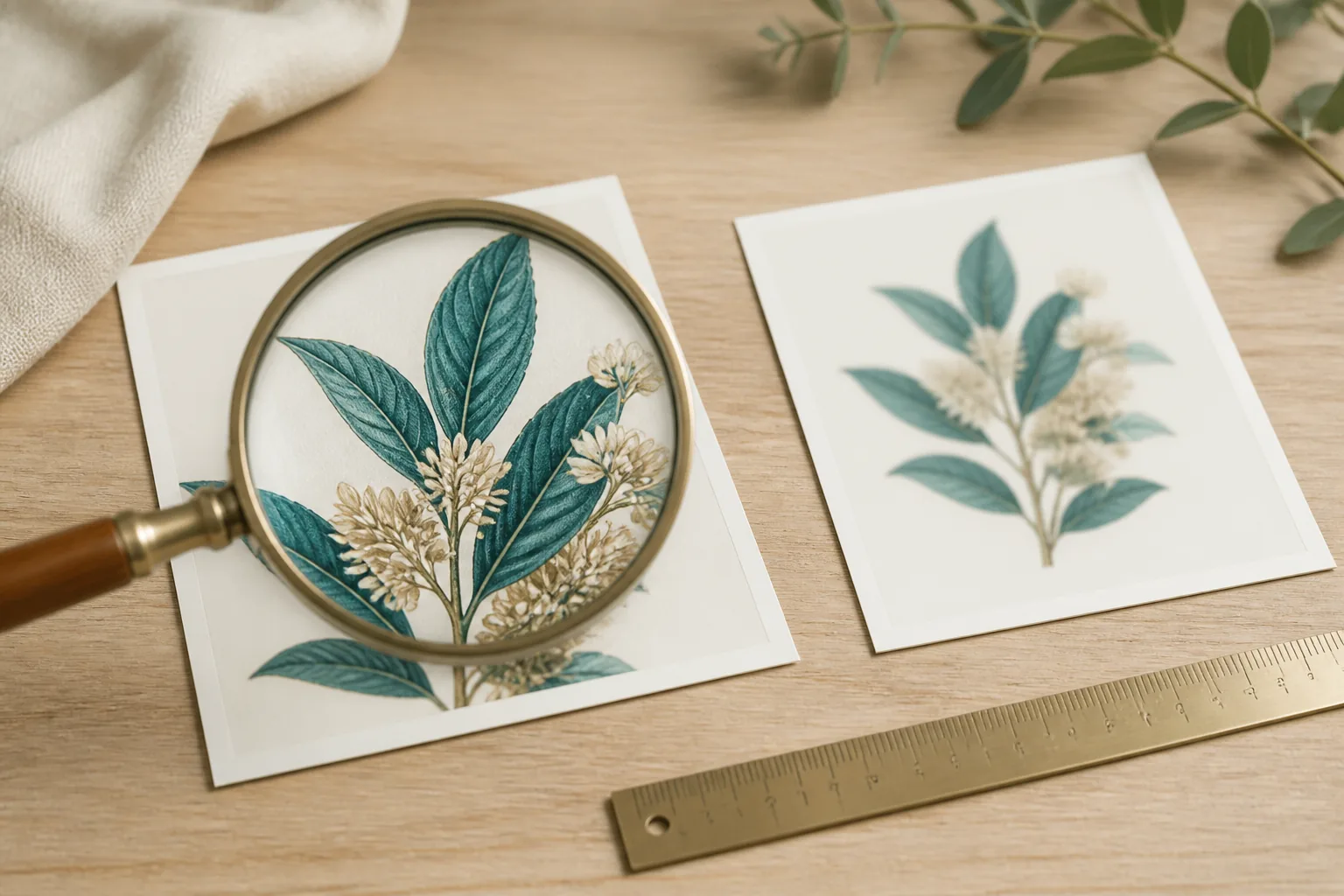
If your Etsy thumbnails look soft, fuzzy, or pixelated, the fix is almost always one of two things: your image is smaller than 2000 px, or it is the wrong shape and Etsy is cropping it. Fix those two and the problem disappears in most cases.
The Fast Fix
Re-export and re-upload your main listing image at 2000 × 2000 px minimum, as a square (1:1), in sRGB color, saved as JPEG at quality 85–90. Then replace the existing thumbnail in your listing rather than editing it in place.
That single change resolves the large majority of blurry-thumbnail reports, because Etsy’s display pipeline has enough pixels to work with and nothing gets distorted by a crop.
If your source file is genuinely small (say, 900 × 900 px), you cannot just stretch it. Run it through AI upscaling first to rebuild it to 2000 px or larger, then upload. More on that below.
Why Etsy Thumbnails Go Blurry: The Real Causes
Cause 1: Uploading below 2000 px
Etsy recommends 2000 px on the shortest side and up to 2700 px on the longest. When you upload something smaller, Etsy stretches it to fill the display slots. Stretching adds no new detail, so edges turn soft and gradients band.
Check the pixel dimensions of your file before uploading. On a Mac, select the file and press the spacebar (Quick Look) and the dimensions show in the info bar. On Windows, right-click → Properties → Details. If either number is below 2000, that is your problem.
Cause 2: Upscaling a low-resolution source the wrong way
Dragging the corner handle in Canva or Photoshop to make a small image “bigger” does not add resolution. It interpolates, guessing pixels between existing ones, which is exactly what produces that mushy, soft look.
A 600 px clipart graphic blown up to 2000 px by simple resizing will always look worse than the original. The pixels were never there. You need real reconstruction (AI upscaling), not stretching.
Cause 3: Wrong aspect ratio causing crop-and-stretch
Etsy’s main thumbnail is a square. Upload a 4:5 portrait poster mockup and Etsy crops the top and bottom to force it square, often cutting off the frame or the product. In some grid contexts the image can also appear visually squished.
The result reads as “low quality” to shoppers even when the source is sharp, because the composition is broken and edges land in the wrong place.
Cause 4: Compression on already-soft images
Etsy re-encodes every image to JPEG. Compression is fine on a crisp, high-resolution source. But if you feed it an image that is already soft (from causes 1–3), compression compounds the softness and you get visible blockiness and color banding.
The Fixes, In Order
1. Start from the highest-resolution source you have. If you designed the art, export at full size, not the “web” or “small” preset. For wall art, that means thousands of pixels per side. See the 300 DPI guide for the resolution math behind print sizes.
2. Hit 2000 × 2000 px minimum for the main image. 2700 px on the long side is ideal. There is no downside to going larger; Etsy downscales for display but keeps detail for the zoom view.
3. Use AI upscaling for low-res sources. When the only file you have is small (a logo, an old graphic, a stock clipart at 800 px), AI upscaling reconstructs edges and texture to reach 2000 px+ cleanly, instead of the smeared result you get from manual stretching. Walk through the approach in AI upscaling for printables.
4. Crop to a true square for the main image. Design or crop the primary listing image at 1:1 so Etsy never chops or distorts it. Keep your portrait/landscape mockups for the secondary image slots, where shape matters less.
5. Export in sRGB as JPEG at quality 85–90. sRGB is what every browser and Etsy’s pipeline expect. Quality 85–90 keeps the file sharp while staying well under Etsy’s 20 MB per-image cap (a 2000 px square JPEG is typically 1–4 MB).
How to Check Your Resolution Before Uploading
Before you ever touch Etsy:
- Mac: Select file → spacebar → read dimensions in the Quick Look bar.
- Windows: Right-click → Properties → Details tab → Dimensions.
- In your design tool: Check the canvas/export size. If the export preset is “web,” “small,” or “social,” switch to full/original size.
Confirm both numbers are 2000 or higher and the image is square for the main slot. If it is not, fix it before uploading. Re-cropping inside Etsy is not an option.
Resolution Targets by Listing Image Type
Not every image needs the same dimensions, but none should fall below 2000 px on the main slot. A practical set of targets:
- Main square thumbnail: 2000 × 2000 px minimum, 2700 × 2700 px ideal. This is the image Etsy crops for the grid and zoom, so give it the most pixels.
- In-room mockups: 2000 px on the long side or larger, so the room and the framed art both stay sharp under zoom.
- Size/ratio reference image: 2000 px square; text and measurement labels go soft fast at lower resolution.
- Detail close-ups: as large as your source allows. These exist specifically to show texture, so resolution is the whole point.
When every image clears 2000 px, Etsy’s downscaling and compression have enough data to keep results crisp across the grid, the listing page, and the zoom view.
A 30-Second Pre-Upload Checklist
Before any image goes onto a listing, confirm:
- Both dimensions ≥ 2000 px (check via Quick Look or Properties).
- Main image is a true square (1:1) so Etsy never crops it.
- Color is sRGB, exported as JPEG at quality 85–90.
- The source was full-size, not a “web” or “social” export preset.
- Any small source was AI-upscaled first, never corner-dragged bigger.
Run this once and the blurry-thumbnail problem effectively disappears, because every cause from the section above is checked off before Etsy ever touches the file.
How Elistit Avoids This Entirely
Elistit’s pipeline outputs at 300 DPI and runs AI upscaling automatically, so the source files clear Etsy’s resolution bar without manual checks. Its automatic mockups are generated as clean squares at the right dimensions, which means the main thumbnail never gets crop-stretched. You still want to understand the rules above, but the common failure modes are handled before the file ever reaches Etsy.
For thumbnail composition and click-through (separate from raw sharpness), see Etsy thumbnail optimization.
Quick questions
Quickly answered.
Q.01What size should my Etsy listing images be?
Upload at least 2000 × 2000 px, with 2700 px on the longest side being the sweet spot Etsy recommends. Etsy resizes anything larger down to display sizes, but it cannot add detail to anything smaller, so always go big. A 2000 px square at 72 PPI is plenty for the on-screen thumbnail and the zoom view.
Q.02Why does my Etsy thumbnail look blurry but the full image looks fine?
Etsy generates the thumbnail by downscaling your full image and applying its own JPEG compression. If your source is a non-square image being cropped to a square, or it has lots of fine detail and hard edges, Etsy's compression can soften it. Upload a clean square at 2000 px or larger and the thumbnail crop will be sharp.
Q.03Can I fix a low-resolution image I already have?
Sometimes. If the original is, say, 800 × 800 px, AI upscaling can rebuild it to 2000 × 2000 px or larger by reconstructing edges and detail rather than just stretching pixels. It is not magic (a tiny, heavily compressed source still has limits), but a 2x or 3x upscale of a reasonable source usually clears Etsy's sharpness bar.
Q.04Does Etsy compress my images and ruin quality?
Etsy re-encodes every upload as JPEG and generates multiple display sizes. This is normal and unavoidable. The way to win is to give Etsy a high-resolution, correctly-cropped source so that even after compression the result stays crisp. A strong source survives compression cleanly; garbage in, garbage out.
Q.05Why does my image look stretched or squished in the thumbnail?
Etsy's primary thumbnail is square (1:1). If you upload a portrait or landscape image, Etsy crops it to a square, which can chop off important parts or appear stretched in some grid views. Design your main listing image as a true square from the start so nothing gets cropped or distorted.
Keep going.
Colors Look Different on Etsy Than in Your Design? Here's Why and How to Fix It
Art looks dull, dark or off-color in the Etsy preview? It's almost always a color profile mismatch. Export in sRGB, soft-proof, and set expectations.
Etsy Digital File Too Large? How to Shrink Files Without Losing Quality
Hit Etsy's 20 MB per-file limit on a digital download? Compress, convert to PDF, or split the bundle while keeping your art at full 300 DPI quality.
How to Make Etsy Mockups Look Realistic (Not Obviously Fake)
Realistic Etsy mockups start with perspective, lighting, scale and shadow, so wall art looks like it's hanging in a real room, not pasted onto a wall.
How to Watermark Etsy Listing Previews Without Ruining the Look
Watermark your listing images, never the buyer's file. How to protect previews with a subtle mark that won't kill conversions, and what it can't stop.